

Connect to partners
Browse the partner catalog, configure attribution and postback settings, and manage your active network connections.
Partners are the ad networks, self-reporting networks, and technology providers you connect to AdShift in order to run campaigns, measure performance, and enrich your data. This article explains how to browse the catalog, configure an integration, and manage your active connections.
Partner types
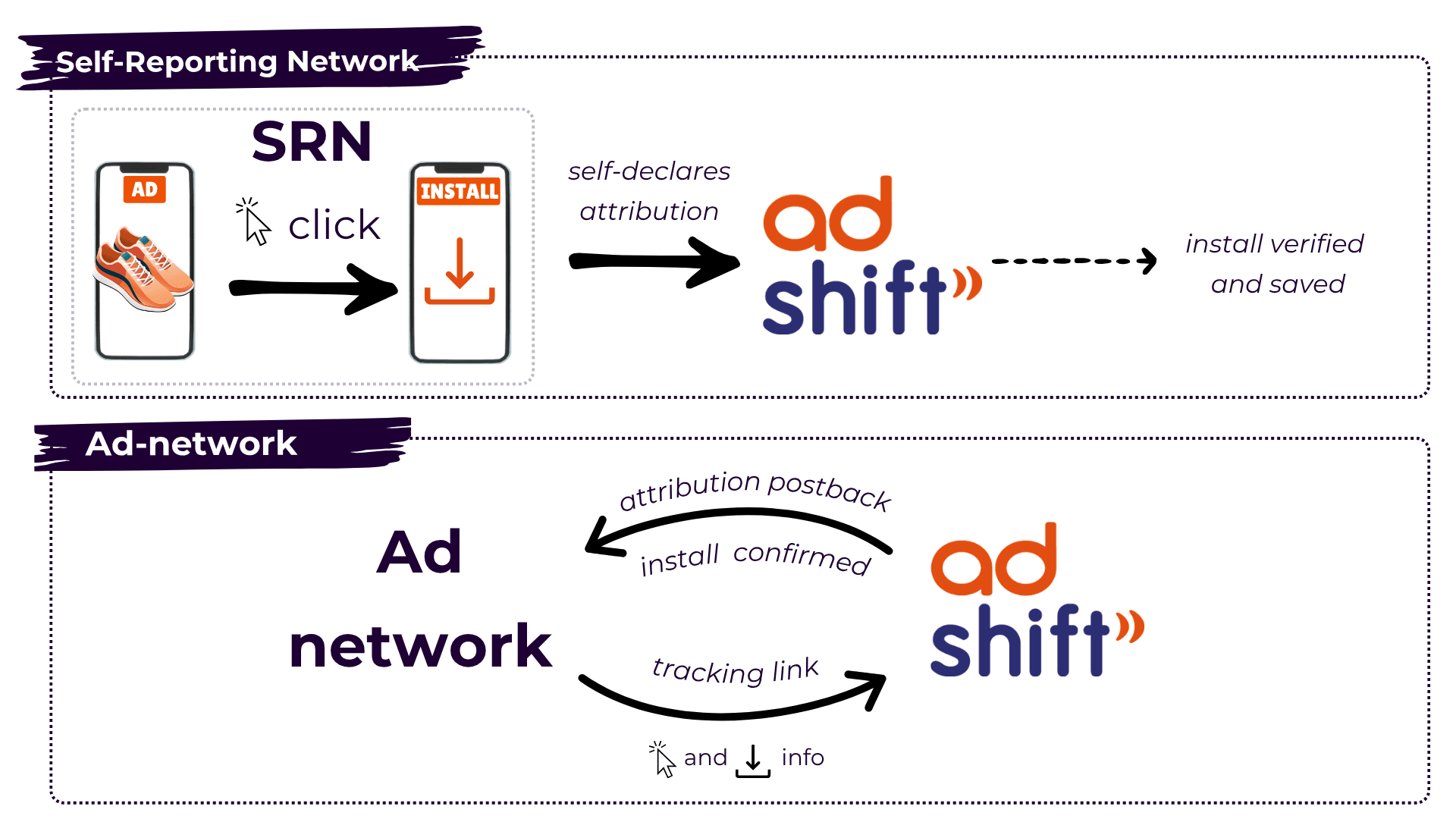
"Partner type" describes how a partner integrates with AdShift, not how large it is. Ad network is an umbrella term for any media partner that drives traffic — including DSPs and affiliate networks. A Self-Reporting Network is a special kind of media partner that attributes on its own side, and a tech partner doesn't handle attribution at all. The real distinction between the rows below is the attribution model.
| Type | How attribution works | Examples |
|---|---|---|
| Ad network | AdShift receives a click or impression signal via a tracking link, then sends an attribution postback when an install is confirmed. | RTB House (DSP) |
| Self-Reporting Network (SRN) | The partner self-declares attribution through its own API — no tracking link is used. AdShift verifies and records the result. | Apple Search Ads, Meta Ads, Google Ads, TikTok Ads |
| Tech partner | No attribution involved — the integration forwards data for enrichment, analytics, or fraud protection. | RevenueCat |
Note: An SRN (also called a Self-Attributing Network, SAN) is technically a subset of ad networks — the difference is that it reports attribution from its own platform instead of relying on AdShift tracking links.
Browse and connect
- Go to Collaborate → Partners.
- Search by name or browse the catalog. Each partner card shows:
- Partner type (Self-reporting network, Ad network, Tech partner)
- Number of active app integrations and page views
- Click a partner card to open its profile. The profile includes:
- Supported features — e.g. User Acquisition, App Install Campaigns
- Overview — what the partner offers
- Partner info — main capabilities, pricing models, service types, supported ad types, traffic types, supported platforms, and contact details
- (Optional) Click Introduce me to ask AdShift to send the partner an introductory email on your behalf.
- Click Connect with partner to open the integration wizard.
Integration wizard — configuration reference
The wizard groups settings into blocks. Defaults are safe for most integrations — change a value only when the partner explicitly requests it.
General settings
| Field | Description |
|---|---|
| Region | The region from which AdShift sends postbacks to this partner. Choose the partner's preferred region to minimise latency (e.g. eu-north-1). |
Install attribution
| Field | Description |
|---|---|
| Click-through lookback window | How far back AdShift looks for a click when attributing a new install. Set the duration and unit (hours or days). |
| View-through lookback window | Same logic, applied to ad impressions instead of clicks. |
| View-through attribution | Master toggle for impression-based attribution. Enable only if the partner runs view-through campaigns. |
Re-engagement attribution
The same fields as install attribution, applied to returning users. Enable view-through re-engagement only if the partner uses it.
Default postbacks
For each event type (Install, Re-engagement) choose who triggers a postback to this partner:
| Option | When AdShift sends a postback |
|---|---|
| This partner only (recommended) | Only when this partner won attribution. |
| All media sources | On every install or re-engagement, regardless of source. Use only when the partner explicitly needs full traffic visibility for optimisation. |
| None | Never. |
In-app event settings
Enable to forward post-install events (purchases, sign-ups, level completions, etc.) to the partner.
| Field | Description |
|---|---|
| Region | The region from which in-app event postbacks are sent. |
| Include in-app event postbacks | Master switch — enable to start sending events. |
| Event mapping | For each AdShift event, set the partner's expected event name, the sender scope (This partner only or All media sources), and the payload (no values, values without revenue, or values with revenue). |
Once you have reviewed all settings, click Activate integration.
Managing active integrations
After connecting, go to Collaborate → Active Integrations → Network Connections to manage your network accounts. Each tile shows:
- Connected account name and identifier
- Health status: Healthy or an issue indicator (e.g. "Token expires in 5d")
- Last sync timestamp
- Actions: Manage, Disconnect, Add Account
You can connect multiple accounts per partner if needed.
What happens after activation
- Postbacks — AdShift begins sending install, re-engagement, and in-app event postbacks to the partner according to the settings you configured.
- Attribution links — for ad network partners, you can generate RightLinks attribution links to use in campaigns.
- Cost and campaign data — for partners that support it (SRNs such as Apple Search Ads, Meta, Google), AdShift pulls spend, impressions, clicks, and campaign structure data. This appears under SRN Insights → Network Self-Reports.