

Overview – Main Dashboard
Your daily marketing pulse: see spend, installs, revenue and ROAS across every channel and app in one place — with comparison charts, a drill-down table, and shortcuts into the detail.
Overview is the first dashboard you see and the one you'll come back to every day. It answers the most important question in one screen: is my marketing paying off — and where?
Everything on the page connects spend to results: spend → installs → revenue → ROAS, across all your channels and apps. The data reflects AdShift (MMP) attribution — measured by the AdShift SDK, not what each ad network claims about itself. For the networks' own numbers, see SRN Insights: Network Self-Reports.
Open it from Analyze → Overview. Times are in UTC, amounts in your project currency, and data refreshes hourly.
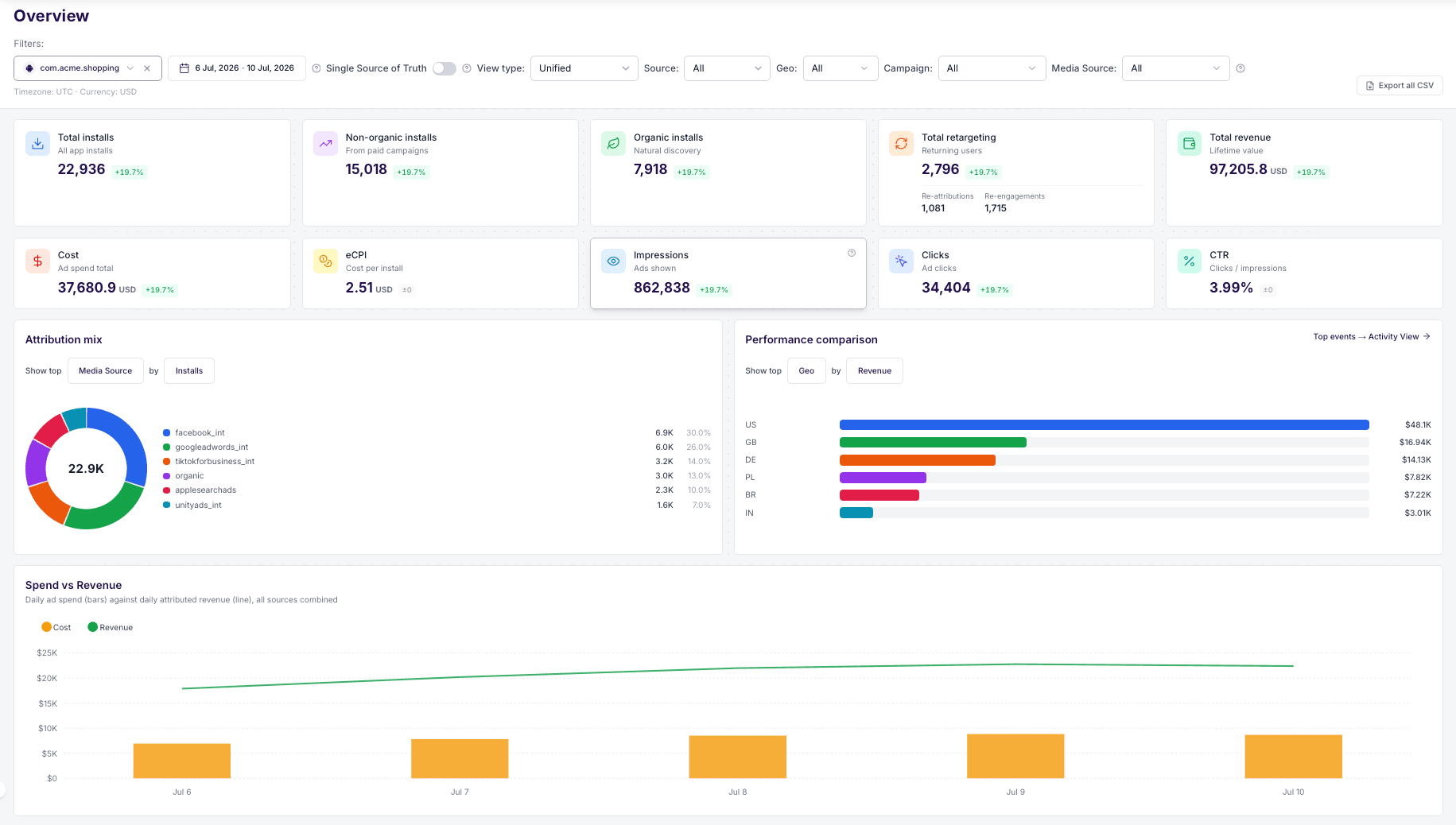
The page reads top to bottom the way you'd investigate: a snapshot in the cards, shape and comparisons in the charts, then row-level detail in the table — with shortcuts into the specialised dashboards at the end.
First, two switches that frame everything
Two controls in the filter bar change what every number on the page means. Worth 30 seconds before anything else.
View type
- Unified — every install and event counted once. The canonical total.
- User Acquisition — new users only; organic is excluded.
- Retargeting — re-engagement of existing users only.
During a retargeting re-engagement window, in-app revenue is credited to both the retargeting source (Retargeting view) and the original acquisition source (User Acquisition view). That's why User Acquisition + Retargeting can add up to more than Unified — Unified counts each event once and is always the source of truth.
Attribution mode
- Deterministic (default) — SDK attribution only. Every install is matched to a specific device-level touchpoint. The most precise view.
- Deterministic + SKAN — adds aggregated Apple SKAdNetwork postbacks on top, to recover iOS installs from users who opted out of tracking (ATT). Only installs not already captured deterministically are added, so nothing is double-counted.
Use Deterministic + SKAN when you want the full picture of paid iOS volume and are comfortable with aggregate-level data for the privacy-constrained part.
Blended numbers will not match the SKAN Overview page — that page shows raw postbacks, while Overview de-duplicates them against SDK-attributed installs.
Summary stats
The cards at the top are your snapshot of the selected period. Each one carries a trend chip — the change versus the previous period of the same length — so you see direction, not just level.
| Card | What it measures |
|---|---|
| Total installs | All new installs attributed in the period (organic + non-organic) |
| Non-organic installs | Installs attributed to a paid media source (via click or impression) |
| Organic installs | Installs with no media-source engagement |
| Total retargeting | Re-attributions plus re-engagements — users you brought back with retargeting |
| Re-attributions | Previously attributed users who reinstalled the app after a retargeting campaign |
| Re-engagements | Existing users (app still installed) who reopened it after a retargeting campaign |
| Total revenue | Revenue generated by users from their install date to now — IAP, ad and subscription combined |
| Cost | Ad spend pulled from your connected network accounts |
| eCPI | Effective cost per install: cost ÷ attributed installs in the period |
| CTR | Click-through rate: clicks ÷ impressions, as reported by the networks |
| Impressions | Ad impressions reported by the networks |
| Clicks | Ad clicks reported by the networks |
Two things you'll notice as you switch context:
- Cards adapt to the View type. In User Acquisition and Retargeting, organic cards disappear — organic traffic isn't part of those questions.
- N/A means "doesn't apply", not zero. If an input is missing for your filter combination (for example, cost when you're looking at organic only), the card shows N/A rather than a misleading 0.
Revenue breakdown
Right below the cards, total revenue is split into its components:
- IAP revenue — in-app purchases
- Ad revenue — ad monetisation
- Subscription revenue — subscriptions
You'll also find Blended ROAS here: (IAP + Ad + Sub) ÷ Cost for the selected view. In Deterministic + SKAN mode the numerator includes SKAN-recovered revenue. This is a calendar metric — it's a different thing from the cohort ROAS on the Cohort & Retention dashboard, which is anchored to acquisition dates.
Use the Revenue source toggle to choose who reports the revenue: SDK (AdShift), RevenueCat, or Adapty.
Charts
Four charts, designed to be read together — from the overall shape of your traffic down to the daily detail. Each answers a different question, and they share your filters, so what you see is always one consistent story.
Attribution mix
"What is my traffic made of?" — a donut showing how a metric (installs, revenue…) splits across a dimension: source, country, campaign, or app. Small contributors are grouped into Other, and the centre always shows the true total.
Performance comparison
"Who are my top performers?" — a ranked bar chart comparing the top values of a dimension for your chosen metric. The fastest way to see your biggest sources, campaigns or countries side by side. A shortcut jumps to Activity View for event-level detail.
Spend vs Revenue
"Is revenue keeping up with spend?" — daily ad spend as bars against daily attributed revenue as a line, all sources combined. The one-glance health check of the account.
Performance chart
"How is this changing over time?" — a fully flexible trend explorer: any metric, broken down by any dimension.
Metrics include installs, clicks, cost, revenue, ROAS, conversion rate, eCPI, ARPU, impressions, sessions, and event metrics (event count, event revenue, eCPA).
Group by:
| Option | Groups by |
|---|---|
| Source | Media source / partner |
| App | Application |
| Campaign | Campaign name |
| Geo | Country |
| Channel | Traffic channel |
| Attribution type | Install / re-attribution / re-engagement |
| Event name | In-app event |
Two notes for correct reading:
- Event metrics are aggregated by event date (when the event happened), not by the install date of the user who triggered it.
- Deterministic + SKAN applies to Installs and Revenue only — SKAN postbacks carry no per-metric breakdown, so other metrics always show deterministic data.

Metrics table
The table is where you go from "what" to "which one exactly". By default it breaks performance down by media source, and you can drill deeper from there.
Columns are organised into three groups, so it's always clear where a number comes from:
| Group | Columns |
|---|---|
| AdShift attribution | Installs, Re-Attributions, Re-Engagements, Conversion Rate |
| Ad network / cost | Impressions, Clicks, Cost, Avg eCPI, ROI |
| In-app revenue | Revenue, ARPU, Sessions, IAP / Ad / Sub revenue, Blended ROAS |
What the table gives you:
- Totals row — grand totals across your entire result set, not just the visible rows.
- Others row — everything beyond the visible top rows, aggregated. Visible rows + Others always reconcile to the Totals, so nothing silently disappears.
- Drill-down — click a row to filter by it and break down one level deeper (source → campaign → geo). Breadcrumbs show your path and let you step back.
- Columns — choose which columns you see, including a Revenue split toggle (IAP / Ad / Sub).
- Top 25 / 50 / 100 — how many rows to rank. Sorting a column reorders the rows already qualified into the top-N.
- Not applicable — metrics that don't make sense for a row (like cost for organic) show "N/A" instead of a fake 0.

Filters
Everything on the page follows the filter bar. Geo, Campaign and Media source accept multiple selections, and their option lists are built from your last 90 days of data.
| Filter | Description |
|---|---|
| Date range | Period to analyse. Defaults to the last 7 days; lookback up to 90 days. |
| App | One or more apps in your project. |
| Media source | One or more ad networks / partners. |
| Campaign | One or more campaigns. |
| Geo | One or more countries. |
| Source | All, Organic, or Non-organic. |
| View type | Unified · User Acquisition · Retargeting. |
| Attribution mode | Deterministic · Deterministic + SKAN. |
Your filter state is kept in the URL — copy the address bar to share exactly what you're looking at with a teammate.
Dive deeper
Overview is deliberately a summary. When you need depth, the Dive deeper cards at the bottom take you to the dashboard that owns it — carrying your current apps and date range along:
- Retention & LTV → Cohort & Retention — do the users you acquire stay and pay back?
- iOS SKAN → SKAN Overview — privacy-safe iOS attribution in full detail.
- Partner reports → SRN Insights — what each network reports about itself.
- Activity View → Activity View — event-level breakdowns and in-app engagement.
See also
Cohort and retention
Measure how users acquired on the same date behave over time: retention, revenue, ARPU, sessions and cost KPIs (eCPI, ROAS, ROI), split by UA, Retargeting or Unified view.
SDK Information
See which app, SDK and OS versions your users are running, what devices they use, and how ATT consent is trending on iOS. The page to check before you drop support for an old version or ship a privacy change.