

Google Ads
Link AdShift to Google Ads as your third-party app analytics provider to attribute installs from Google campaigns and send your conversions to Google Ads for reporting and bidding.
Google Ads runs app campaigns across Google Search, Google Play, YouTube and the Display Network. Link AdShift to Google Ads as your third-party app analytics provider to attribute installs from those campaigns with Google's own confirmation, and to send the conversions AdShift measures to Google Ads for reporting and bidding.
The link is one value, the Link ID. You create it in Google Ads and paste it into AdShift. It needs no code changes, does not change your campaigns and costs nothing.
Before you begin
- AdShift SDK integrated - the app must already send installs and events to AdShift. See dev.adshift.com for the integration guide.
- Admin access to Google Ads - Google lets only account administrators create a Link ID.
- AdShift project access - you need permission to manage partners and network connections in AdShift.
- One Link ID per app - if you have an Android app and an iOS app, create a separate Link ID for each.
Hand this to your developer
Two things are done in the app, not in the dashboard:
- Consent - for users in the European Economic Area, Google expects the user's consent answers together with each conversion. The app passes them to the AdShift SDK. See Google Ads integration in the developer guide.
- iOS apps - add Google's on-device conversion library, so Google can also measure installs that have no advertising identifier. See Google On-Device Conversion Measurement.
What the link does
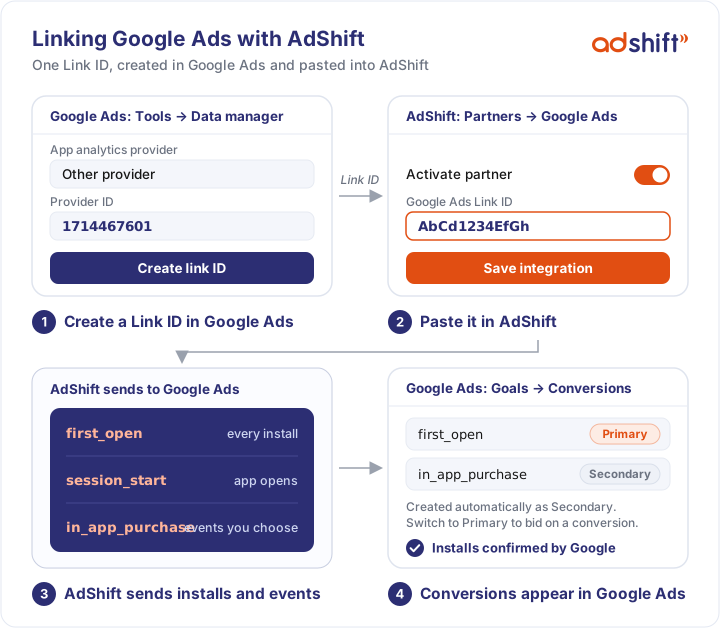
Linking lets AdShift:
- Attribute installs from your Google campaigns, confirmed by Google, down to the campaign
- Send every install to Google Ads as the
first_openconversion - Send app opens and the in-app events you choose to Google Ads, with their value, so Google can report and optimize on them
AdShift will not create, edit or delete your Google campaigns.
Connect Google Ads
Step 1 - Connect your Google Ads account in AdShift
- In AdShift, go to Collaborate → Partners and open Google Ads.
- Click Connect Google Ads. A window lists the access AdShift asks for:
- Read campaign structure and settings
- Read ad performance and costs
- Read conversion data
- Click Continue to Google Ads, sign in with the Google account that has access to your Google Ads account, and approve the request.
- You are returned to AdShift. If your Google user has access to several Google Ads accounts, choose the ones to connect.
The partner page now shows a green banner such as 1 account(s) connected, and the Configure integration button becomes active.
Step 2 - Create a Link ID in Google Ads
- In Google Ads, open Tools → Data manager.
- Click + Connect product and select Third-party app analytics (it is also listed under Featured products), then click Continue.
- Select Create link ID. If the account is already linked to another provider, click the plus button to add a new link.
- In App analytics provider, choose Other provider and enter the AdShift provider ID:
1714467601. - In Select your mobile app's platform, choose Android or iOS.
- Use Look up your app to find and select your app.
- Click Create link ID, copy the value and click Done.
Google Ads shows the new link with the status Unverified. That is expected: the status changes once the Link ID is saved in AdShift and conversions start arriving.
Step 3 - Paste the Link ID in AdShift
- Back on the Google Ads partner page in AdShift, click Configure integration.
- Choose the app the Link ID was created for.
- Turn on Activate partner.
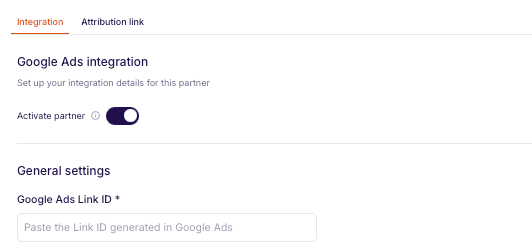
- Under General settings, paste the value into Google Ads Link ID.
- Click Save integration.
From this moment AdShift sends the app's installs to Google Ads. Repeat steps 2 and 3 for every app you advertise.
Step 4 - Choose the events to send
Installs are sent on their own. To send more, turn on In-app event postbacks on the same page.
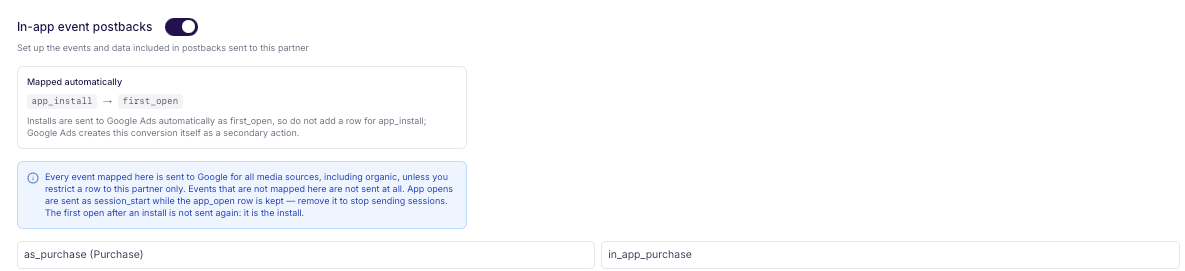
| Your event | Sent to Google Ads as | When |
|---|---|---|
app_install |
first_open |
Always. Do not add a row for it. |
app_open |
session_start |
While the app_open row is in the table. Remove the row to stop sending sessions. |
| Any other event | The Google event you choose | Only events that have a row are sent. |
To add an event, click Add event and fill in the row:
- Event - the event your app sends to AdShift.
- Mapped to partner event - a Google conversion event (
in_app_purchase,add_to_cart,view_item,view_item_list,view_search_results,ecommerce_purchase) or your own name, up to 64 characters. - For users from - keep All media sources, including organic unless you have a reason not to. Google matches the events to its own campaigns.
- Including - choose Values & revenue for purchase events, so Google receives the amount and the currency.
Ad revenue and refunds are not sent to Google Ads. When the table is ready, click Save integration.
Step 5 - Review the conversions in Google Ads
Google Ads creates a conversion automatically the first time it receives an event from AdShift, so there is nothing to import. A new conversion can take a few hours to appear under Goals → Conversions → Summary.
Every conversion created this way is Secondary: it is reported, but campaigns do not bid on it. To let campaigns optimize for a conversion, open it in Google Ads and change it to Primary.
Do you also use Firebase with the same Google Ads account?
Google then receives the same installs and events twice, as separate conversions. Keep only one of them Primary for each goal, otherwise bidding counts every conversion twice.
Attribution settings
The Google Ads page in AdShift has a few settings besides the Link ID. The defaults suit most apps.
| Setting | Recommended |
|---|---|
| Share installs without an advertising identifier | On. Google can then also match installs that carry no advertising ID. |
| Install click-through lookback window | The default, 30 days. It is the window Google Ads uses itself; with a shorter one the two dashboards disagree. |
| Pre-registration campaign lookback window | 90 days, but only if you run pre-registration campaigns. |
| Re-engagement attribution | On if you run re-engagement campaigns. Retargeting must also be enabled in the app's settings. |
| Re-engagement inactivity window | No inactivity required, the value Google expects. |
Campaigns in more than one Google Ads account
An app has one Link ID in AdShift. If campaigns for the app run in several Google Ads accounts:
- Accounts under one manager account - create the Link ID in the manager account and use cross-account conversion tracking.
- Separate accounts, for example agencies - create the Link ID in your own account, then share it: in Tools → Data manager, find Third-party app analytics, click Manage and link, and choose Options → Share with another account.
Create the Link ID in an account you own rather than in an agency's account. The link then stays with you if you change agencies.
Managing the link
- New Link ID - regenerating the Link ID in Google Ads switches the old one off at once. Paste the new value into AdShift right away, otherwise Google stops accepting your conversions.
- Turning the integration off - turn off Activate partner on the Google Ads page in AdShift and save.
- Connected accounts - go to Collaborate → Active Integrations → Network Connections to see the connected Google Ads accounts, add another one or disconnect.
Check that it is working
- In Google Ads, the link under Tools → Data manager → Third-party app analytics is no longer Unverified.
- In Google Ads,
first_openappears under Goals → Conversions → Summary and starts counting. - In AdShift, new installs from your Google campaigns are attributed to Google Ads in your reports.
Troubleshooting
The Configure integration button is greyed out The Google Ads account is not connected yet. Click Connect Google Ads on the partner page first.
The link stays "Unverified" in Google Ads The status changes only after Google receives the first conversions. Check that the Link ID is saved in AdShift for the same app, that Activate partner is on, and that the app has had new installs since then.
AdShift does not accept the Link ID A Link ID has only letters and digits. Copy it with the copy button in Google Ads and make sure no spaces or other characters came along.
Conversions stopped arriving in Google Ads Most likely the Link ID was regenerated in Google Ads. Copy the current Link ID from Google Ads and save it in AdShift.
A mapped event does not show up in Google Ads Google creates the conversion only after it receives the event for the first time. Check that In-app event postbacks is on, that the event has a row, and that the app has sent the event since. Then allow a few hours.
Campaigns do not optimize for my event The conversion is still Secondary. Change it to Primary in Google Ads.
Google Ads and AdShift show different numbers of installs Some difference is normal: Google Ads reports every install it claims, while AdShift credits each install to one source across all networks. Keep the install click-through lookback window at 30 days so both use the same window.
See also
- Google Ads - developer guide - what is sent to Google, consent, and how to check single installs and events
- Google On-Device Conversion Measurement - developer guide for iOS apps
- Connect to partners - overview
- Link a third-party app analytics provider and Google Ads - Google Ads Help
Apple Search Ads
Connect your Apple Ads account to AdShift to import campaign costs and performance data, and view SKAN installs in SRN Insights.
Meta Ads
Connect your Meta ad account to AdShift to attribute installs from Facebook and Instagram campaigns, import your costs, and send installs and in-app events to Meta.