

Meta Ads
Connect your Meta ad account to AdShift to attribute installs from Facebook and Instagram campaigns, import your costs, and send installs and in-app events to Meta.
Meta runs app campaigns across Facebook, Instagram and its other placements. Connect your Meta ad account to AdShift to attribute installs from those campaigns, import your campaign costs, and send installs and the in-app events you choose to Meta.
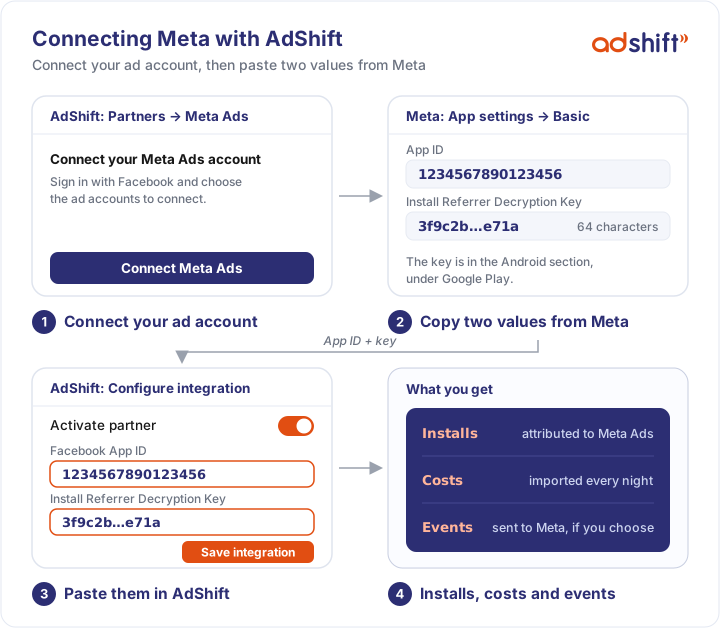
Setup takes three steps: connect the ad account, then copy two values from Meta for Developers into AdShift. Sending events to Meta is a fourth, optional step.

Before you begin
- AdShift SDK integrated - the app must already send installs and events to AdShift. See dev.adshift.com for the integration guide.
- The app added in AdShift - with its Google Play package name or App Store ID. AdShift uses them to match your Meta costs to the app.
- Admin access to the business portfolio that owns your app in Meta for Developers - Meta shows the Install Referrer Decryption Key only to admins.
- A Facebook user with access to your Meta ad account - you sign in with this user to connect the account. To send events to Meta, the same user also needs access to your app's dataset in Events Manager.
- AdShift project access - you need permission to manage partners and network connections in AdShift.
Hand this to your developer
Two things are done in the app, not in the dashboard:
- Android: the Facebook App ID in the app - the AdShift SDK (3.0.0 or later) reads Meta's install referrer from the Facebook and Instagram apps only when it knows your Facebook App ID. This also measures installs after an ad view. See Meta Attribution in the developer guide.
- Consent - for users in the European Economic Area, events reach Meta only when the app passes the user's consent for ad storage and data usage to the AdShift SDK. See consent for Android and iOS.
What the integration does
Connecting Meta lets AdShift:
- Attribute installs from your Meta campaigns on Android, down to the campaign, ad set and ad
- Import your Meta costs and campaign performance
- Send installs and the in-app events you choose to Meta through the Conversions API, so Meta can report and optimize on them
On iOS, Meta installs are measured with SKAN and appear on the SKAN page. See What is SKAN?.
AdShift will not create, edit or delete your Meta campaigns.
Connect Meta
Step 1 - Connect your Meta ad account
- In AdShift, go to Collaborate → Partners and open Meta Ads.
- Click Connect Meta Ads. A window lists the access AdShift asks for:
- Read campaign structure and settings
- Read ad performance and costs
- Read conversion data
- Click Continue to Meta Ads, sign in to Facebook with the user that has access to your ad account, and approve the request. Meta's screen may also mention managing your ads: AdShift uses the access only to read your data and to send events, and does not change your campaigns.
- You are returned to AdShift. If your Facebook user has access to several ad accounts, choose the ones to connect and click Connect.
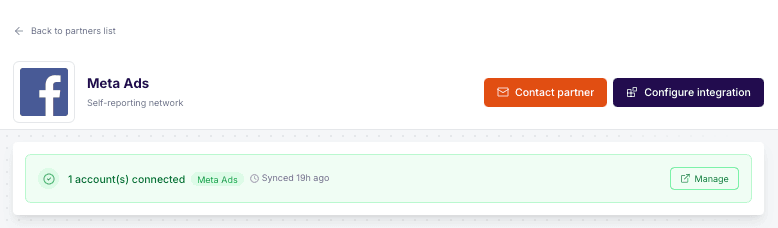
The partner page now shows a green banner such as 1 account(s) connected, and the Configure integration button becomes active.
Step 2 - Copy the App ID and the decryption key from Meta
- Open Meta for Developers, go to My Apps and choose the app you advertise.
- Go to App settings → Basic.
- Copy the App ID from the top of the page.
- Scroll down to the Android section and copy the Install Referrer Decryption Key under Google Play.
The key is 64 characters long: digits and the letters a to f. For an iOS app you need only the App ID.
Step 3 - Enter them in AdShift
- Back on the Meta Ads partner page in AdShift, click Configure integration.
- Choose the app.
- Turn on Activate partner.
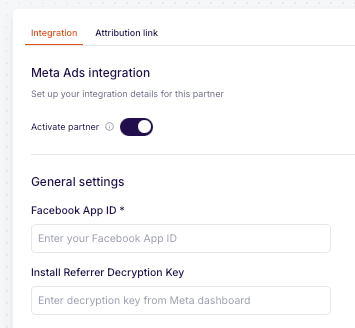
- Under General settings, paste the App ID into Facebook App ID and the key into Install Referrer Decryption Key.
- Click Save integration.
From this moment AdShift attributes new Android installs from your Meta campaigns. Repeat steps 2 and 3 for every app you advertise; an Android app and an iOS app are set up separately.
Check the key carefully
AdShift cannot tell a wrong key from a missing one. With either, installs from Meta are counted as organic and no error is shown. Copy the key of the same app, with no spaces before or after it.
Step 4 - Send installs and events to Meta (optional)
AdShift sends installs and in-app events to Meta through the Conversions API, into the dataset linked to your app in Events Manager. Skip this step if you do not want AdShift to send anything to Meta.
- In Meta Events Manager, open the dataset linked to your app and go to Settings. Copy the Dataset ID. If the app has no dataset yet, open the app in Events Manager and link it with Link to dataset.
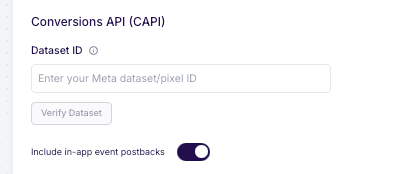
- On the Meta Ads integration page in AdShift, paste the number into Dataset ID under Conversions API (CAPI) and click Verify Dataset. AdShift shows the dataset's name when it can reach it. If AdShift has already found the dataset in your campaigns, the field is filled in and shows Auto-discovered on with a date.
- Turn on Include in-app event postbacks. While it is off, AdShift sends nothing to Meta, not even installs.
- Choose the events to send, then click Save integration.
| Your event | Sent to Meta as | When |
|---|---|---|
app_install |
MobileAppInstall |
Always. Do not add a row for it. |
| Any other event | The Meta event you choose | Only events that have a row are sent. |
To add an event, click Add event and fill in the row:
- Event - the event your app sends to AdShift.
- Mapped to partner event - a Meta standard event, such as
fb_mobile_purchaseorfb_mobile_complete_registration, or your own name of 2 to 40 characters: letters, digits, spaces, underscores and hyphens. - Including - choose Values & revenue for purchase events, so Meta receives the amount and the currency.
Apply recommended mappings adds the usual purchase row: as_purchase sent as fb_mobile_purchase with its value.
AdShift sends the mapped events of all your users, whatever source they came from, so Meta can match them to its own campaigns. Ad revenue is not sent to Meta.
Do you also log events with the Facebook SDK in your app?
Do not map the same events in AdShift. Meta does not deduplicate events from the two sources and counts them twice.
Attribution settings
The Meta Ads page in AdShift has a few attribution settings besides the two values. The defaults suit most apps.
| Setting | Recommended |
|---|---|
| Install click-through lookback window | The default, 7 days. Keep it equal to the attribution setting of your Meta ad sets, so both dashboards count the same installs. |
| Install view-through attribution | On, if you want installs after an ad view. Android only. |
| Install view-through lookback window | The default, 1 day. |
| Re-engagement attribution | The defaults, if you run re-engagement campaigns. |
View-through attribution has a second switch for the whole app: turn on View-through attribution in Settings → App Settings, otherwise no ad view is counted for any partner. Re-engagement attribution likewise needs Re-engagement attribution turned on in App Settings.
Managing the connection
- Connected accounts - go to Collaborate → Active Integrations → Network Connections to see the connected Meta ad accounts, the last sync and the last cost import, add another account or disconnect.
- Expired access - if the tile shows Access token has expired, connect the account again from the Meta Ads partner page.
- Disconnecting - disconnecting an account also signs AdShift out of the other Meta accounts you connected in the same sign-in, so connect those again if you still need them. When you disconnect the last Meta account, AdShift turns the Meta integration off for every app in the project.
- Turning the integration off - turn off Activate partner on the Meta Ads page and save.
Check that it is working
- On the Meta Ads partner page, the green banner shows your connected accounts. If you send events, CAPI Status shows Dataset ID verified.
- After the next nightly import, usually by the next morning (UTC), your Meta campaigns and costs appear under SRN Insights → Network Self-Reports → Meta Ads. The first import covers the last 7 days.
- After the first installs from an Android campaign, Meta Ads appears as a media source in your reports.
- In Meta Events Manager,
MobileAppInstalland your mapped events appear in the dataset.
Troubleshooting
The Configure integration button is greyed out The Meta ad account is not connected yet. Click Connect Meta Ads on the partner page first.
You do not see your ad account when connecting The Facebook user you signed in with has no access to that ad account. Sign in with a user that has access, or ask an admin of your business portfolio to give your user access to the ad account.
There is no Android section or decryption key in Meta for Developers Check that you opened the app you advertise, not another app in the same account. The Android section appears only after the Android platform is added to the app: at the bottom of App settings → Basic, click Add platform and choose Android. The key is shown only to admins of the business portfolio that owns the app.
Installs from Meta campaigns show up as organic Check the Install Referrer Decryption Key: it must be the key of the same app, 64 characters long, with no spaces. Check that Activate partner is on for the app and that your developer set the Facebook App ID in the app. Installs are attributed from the moment the key is saved; earlier installs are not counted again.
Installs after an ad view are missing Both switches must be on: View-through attribution in Settings → App Settings and Install view-through attribution on the Meta Ads page. View-through works on Android only.
Verify Dataset fails Check that you copied the Dataset ID, not the App ID, and that the Facebook user who connected the ad account has access to the dataset in Events Manager.
Events do not arrive in Events Manager Check that Include in-app event postbacks is on, that the Dataset ID is verified and that the event has a row in the table. Meta accepts events up to 7 days old. For users in the European Economic Area, events are sent only with the user's consent; see Before you begin.
CAPI Status says CAPI will activate after the nightly discovery job You have several Meta ad accounts connected and entered the Dataset ID yourself. AdShift starts sending after the nightly sync links the dataset to the account that owns it. If the status does not change within a day, contact AdShift support.
Meta counts events twice You also log the same events with the Facebook SDK. Remove them from the AdShift table, or stop logging them with the Facebook SDK.
Costs are missing Costs arrive with the nightly import, so a newly connected account shows them the next morning. AdShift matches costs to an app by the store link of the ad set: check that the app in AdShift has the same package name or App Store ID as the app you promote in Meta.
AdShift and Meta Ads Manager show different numbers of installs Some difference is normal. Meta reports every install it credits to its ads, while AdShift credits each install to one source across all your networks. iOS installs from Meta are counted in SKAN data in AdShift.
See also
- Meta Attribution - developer guide - what the app needs for Meta installs
- SRN Insights: Network Self-Reports - view Meta campaign performance in AdShift
- What is SKAN?
- Connect to partners - overview
- Meta Install Referrer - Meta for Developers
- Conversions API for App Events - Meta for Developers
Google Ads
Link AdShift to Google Ads as your third-party app analytics provider to attribute installs from Google campaigns and send your conversions to Google Ads for reporting and bidding.
RevenueCat
Connect RevenueCat to AdShift to forward subscription and in-app purchase revenue via webhook — no code changes to your purchase flow.